Users may have found they get an error when trying to
open and run OziExplorer on a new laptop or computer.
This error is because a number of newer Windows
laptops and computers are now using ARM (Snapdragon)
processors - on these processors standard Windows
programs are run through emulation - to run OziExplorer
a change is required to the emulation settings inside
Windows 10/11.
Below are some of the computers
which require the setting change
laptops or computers with a Snapdragon
processor
Apple laptops and computers with M series
processors running Windows 11 (ARM version) in a
virtual machine.
The required change to the Windows Emulation Setting
is below - but the developer of
oziTarget has
also provided a page which shows how to get OziExplorer
running on a laptop / computer using an ARM / Snapdragon
processor - also includes a video -
Click Here
This is the
Required Settings Change
1. Navigate to the OziExplorer
folder on your computer. Normally
C:\OziExplorer
2. Right click on
the oziexp.exe file and
select properties on the menu
- a dialog will open
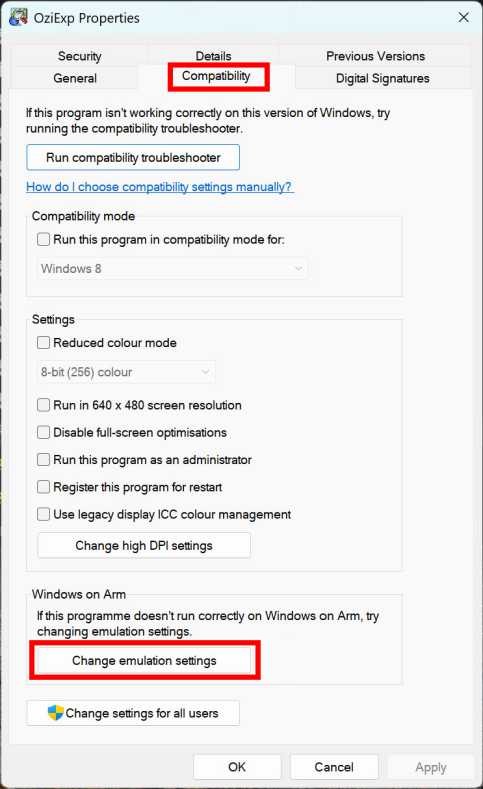
3. Click on the Compatibility
tab
4. Click on the Change
emulation settings button - near
the bottom of the dialog - a new
dialog will open
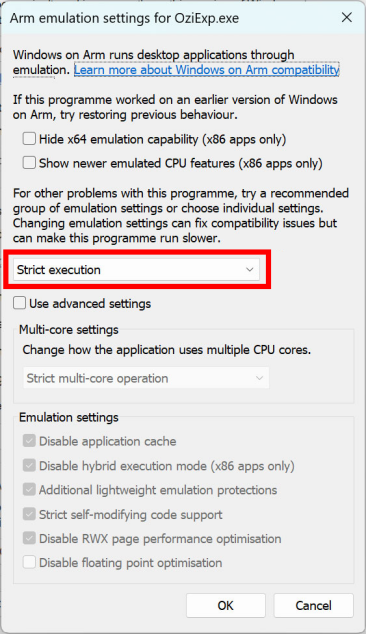
5. Click on the drop down box and
set Strict Emulation
6. Click Apply and then click OK
to back out of all the settings and
OziExplorer should now work.
The screens below show where the
options are located.
 Running
OziExplorer on ARM / Snapdragon Computers
Running
OziExplorer on ARM / Snapdragon Computers